Identify clothes from a video or photo
Find clothes from a video or screenshot
Identify the clothes in a video or photo and find where to buy them in India. Upload it to FOUND, with tips for frames that get the best matches.

Found: Find outfits from reels · on Android and in your browser, iPhone included · free plan, no Instagram login · See the steps
The short answer
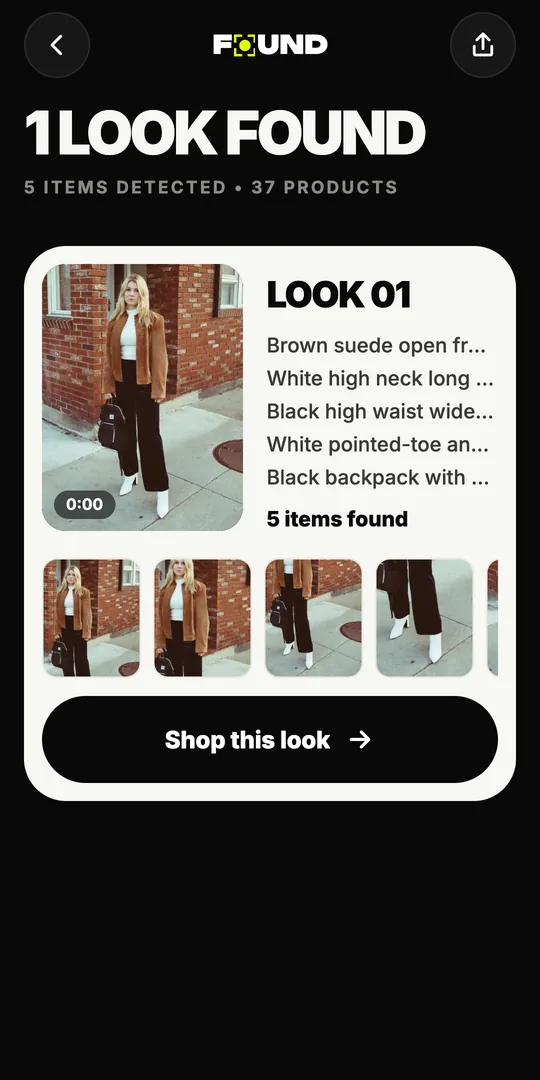
To find clothes from a video or screenshot, open FOUND, tap Upload a video and pick it from your gallery. FOUND reads up to 12 still frames from a video (a screenshot is one frame), identifies each piece of clothing, and shows matching or similar products from Indian online stores. Clear, well-lit frames where the whole piece is visible work best.
By FOUND Editorial at Sitio Labs · Updated
Step by step
How to find clothes from a video or screenshot
Works with videos and screenshots already saved in your phone’s gallery.
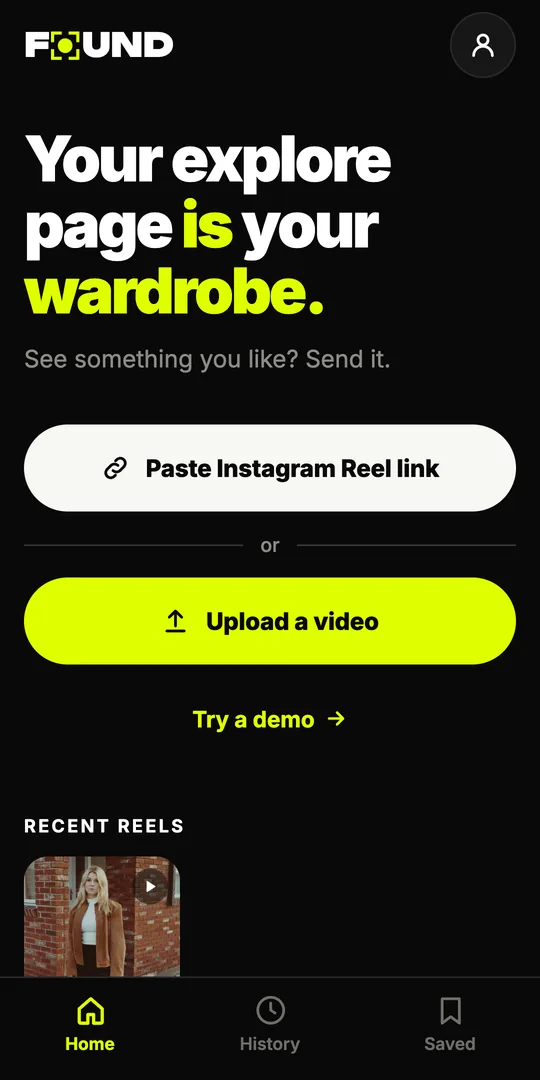
Tap Upload a video
On FOUND’s home screen, tap Upload a video and choose the video or screenshot from your gallery. Want to see how it works first? Tap Try a demo.
FOUND reads the frames
On your phone, FOUND picks up to 12 still frames from the video and uploads only those. AI then identifies each outfit and every piece in it.
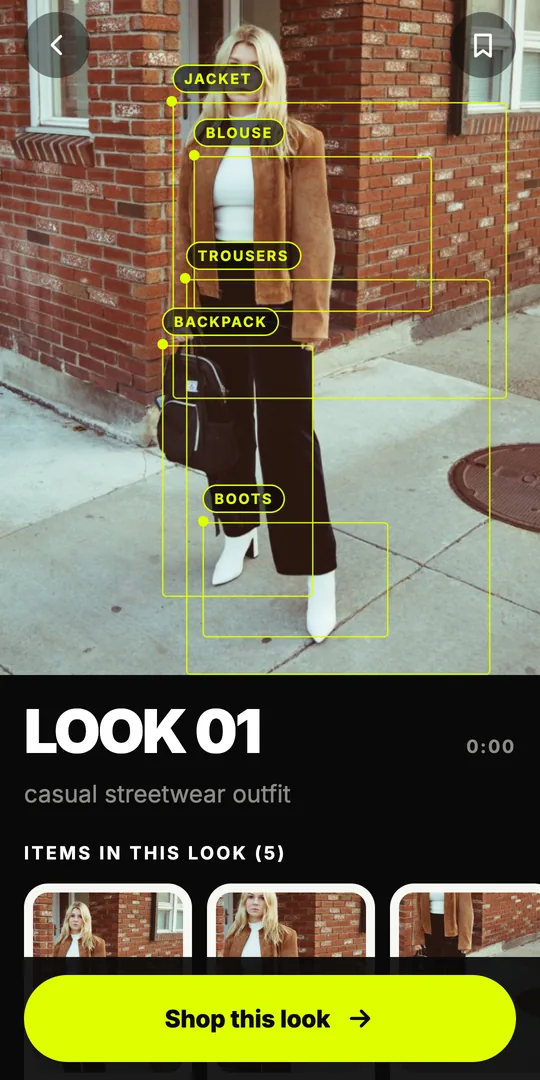
Check each piece
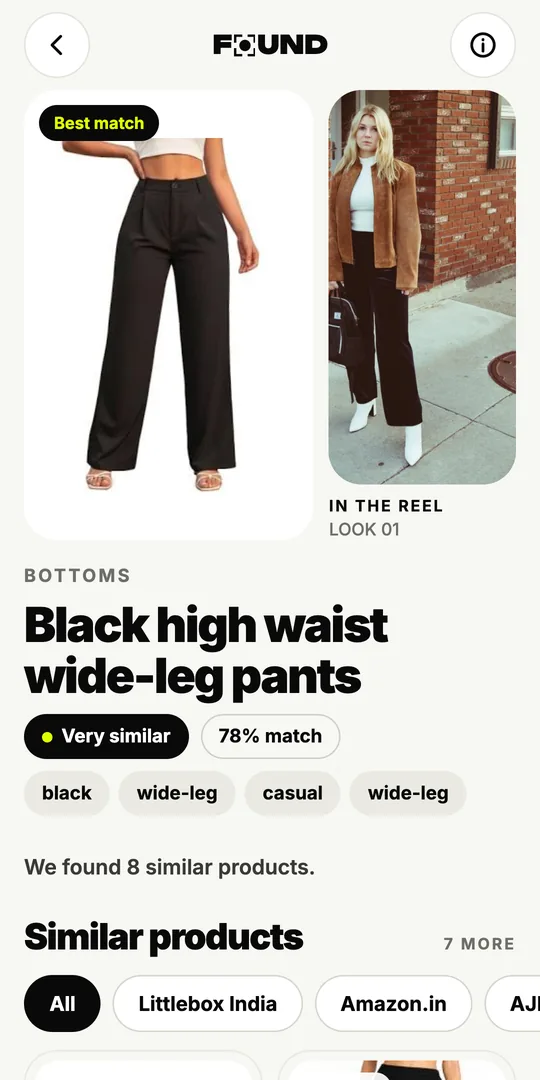
Tap a piece to see products from Indian stores, labelled Likely match, Very similar or Similar, with price and stock when the store lists them.
Can you identify clothes from a video or photo?
Yes. An app can look at a frame, work out that it shows, say, a cropped denim jacket over a white tank and wide-leg trousers, and then search for those pieces online. The hard part is everything around that: picking good frames from a video, finding every piece instead of just one, and searching stores you can actually order from.
That’s the job FOUND does. It’s an outfit finder by Sitio Labs, on Android and in your browser, listed on Google Play as Found: Find outfits from reels. Most people use it with Instagram Reels, but it works just as well with a video or screenshot from your gallery.
Which videos and screenshots work best?
FOUND can only find what it can see. A few seconds of care makes a real difference to the results:
- The whole piece is in view. Shoes cut off at the bottom of the frame, or a bag hidden behind an arm, are hard to identify.
- Good light. Daylight and well-lit rooms show colour and texture. Dim, warm party lighting can shift colours.
- Sharp, not blurred. Pick a moment when the person is still, not mid-spin.
- Little covering the clothes. Big captions, stickers and emoji over the outfit hide the details that matter.
- One clear look at a time. If a video jumps between many outfits, a shorter clip around the one you want keeps the results focused.
How do you take a good screenshot of an outfit?
- Pause on the right moment. Scrub to where the piece faces the camera and is fully in frame.
- Hide the controls. Wait for the play bar and buttons to fade before you take the screenshot.
- Don’t zoom in too far. Zooming a video makes it blurry. A sharp full frame works better than a blurry close-up.
- Take two if you need to. If the top is clear in one moment and the shoes in another, take a screenshot of each and upload them one at a time.
Only screenshot and share content where the creator is happy for you to, and never repost someone else’s video as your own.
What happens after you upload?
FOUND picks up to 12 still frames on your phone and uploads only those. Its AI identifies each outfit and every piece in it: tops, outerwear, bottoms, dresses, ethnic wear like kurtas, sarees and lehengas, shoes, bags, sunglasses, jewellery and hats. For each piece, it searches Indian online stores by image (Google Lens) and by description (Google Shopping), and ranks the products it finds.
Each product is labelled Likely match, Very similar or Similar. FOUND never claims a guaranteed exact match from a few frames; here’s how to check whether it’s the exact product. When you’ve picked the pieces you like, Shop this look lists one option per piece with the total, as explained on our shop the look page.
What happens to the video you upload?
Your full video never leaves your phone. FOUND uploads only the still frames it picked, and deletes them within 24 hours. It never asks for your Instagram login, and you can try the demo without an account. Delete your account any time from your profile on the Home screen, or at found.clikit.store/account/delete.
Are there other ways to identify clothes from a photo?
Yes. For a single piece, you can search a screenshot with Google Lens yourself: crop it to one piece, search, and then check which results are sold in India. You can also read the caption and comments, or ask the creator. Our guide to finding clothes from an Instagram Reel covers each method, and FOUND vs Google Lens explains when each one fits best. FOUND does it for every piece at once, and for more on how that works, read how outfit-finding AI works.
Can I find clothes from a screenshot instead of a video?
Yes. Upload the screenshot from your gallery and FOUND identifies the clothes in it, just as it does with a video.
A video gives FOUND up to 12 frames to work with, so a short clip often shows more of each piece than a single screenshot.
Can I use a video that isn’t from Instagram?
Yes, if it’s saved in your phone’s gallery: a clip you filmed yourself, or one a friend sent you, for example.
For public Instagram Reels, it’s quicker to share the Reel to FOUND or paste its link.
Why didn’t FOUND find a piece in my video?
Usually because no frame shows it clearly: it’s blurred, cut off, covered, or on screen only for a moment.
Try a screenshot of the clearest moment, or a clip where the piece is fully in view. One-off pieces may not be sold online, so you may see only similar products.
Does FOUND upload my whole video?
No. FOUND picks up to 12 still frames on your phone, uploads only those, and deletes them within 24 hours.